

How to Fix a Printer That Won't Recognize Ink
| Editorial Team
Last Updated: November 4, 2026
Quick Summary
Your printer not recognize ink usually because of dirty electrical contacts, a badly seated cartridge, leftover protective tape, stale firmware, a dead chip, or an incompatible cartridge model. Clean the copper contacts with isopropyl alcohol, reseat the cartridge until it clicks, and remove any tape before checking firmware. Most cases are fixed at home without buying a new cartridge.
- Clean the cartridge and carriage contacts with a damp lint-free cloth and isopropyl alcohol, then air-dry for two minutes.
- Push the cartridge in at a slight upward angle until you feel a firm click.
- For a hard reset, unplug the power cord from the wall and wait at least 60 seconds.
- If the error appeared within a day or two of a firmware update, treat that update as the prime suspect.
- A cartridge built for a different model will never work, so verify the part number first.
Table of Contents
- Why Your Printer Not Recognize Ink: Common Causes
- Step 1: Clean the Electrical Contacts and Chip Reader
- Step 2: Properly Seat the Cartridge and Remove Protective Tape
- Step 3: Perform a Hard Reset and Power Cycle
- Step 4: Update or Roll Back Printer Firmware
- When the Printer Says No Ink but Cartridge Is Full
- How to Get Printer to Accept Ink Cartridge: Compatibility Checks
- HP Printer Not Recognizing New Ink Cartridge: Brand-Specific Fixes
- Frequently Asked Questions
Why Your Printer Not Recognize Ink: Common Causes
When your printer not recognize ink, the cause is usually one of six things: dirty electrical contacts, a badly seated cartridge, leftover protective tape, stale firmware, a dead chip, or a cartridge that simply isn't compatible with your model. Many of these can be fixed at home with little effort.
Printers verify ink through a small chip on each cartridge that talks to a reader inside the carriage.
The fix rarely requires a new cartridge.
Here's a practical checklist:
- Dirty contacts → clean with isopropyl alcohol
- Loose seating → reseat until it clicks
- Protective tape → peel it off the bottom
One warning: don't shake, blow on, or wipe a cartridge with a dry paper towel. That pushes dust into the chip reader and makes things worse.
The article lists six common causes of ink recognition errors and the fix for each.
| Cause | Fix |
|---|---|
| Dirty contacts | Clean with isopropyl alcohol |
| Loose seating | Reseat until it clicks |
| Protective tape | Peel it off the bottom |
| Stale firmware | Update or roll back |
| Bad chip | Replace the cartridge |
| Incompatible model | Verify the part number |
Step 1: Clean the Electrical Contacts and Chip Reader
Start here because it solves the most cases with the least risk.
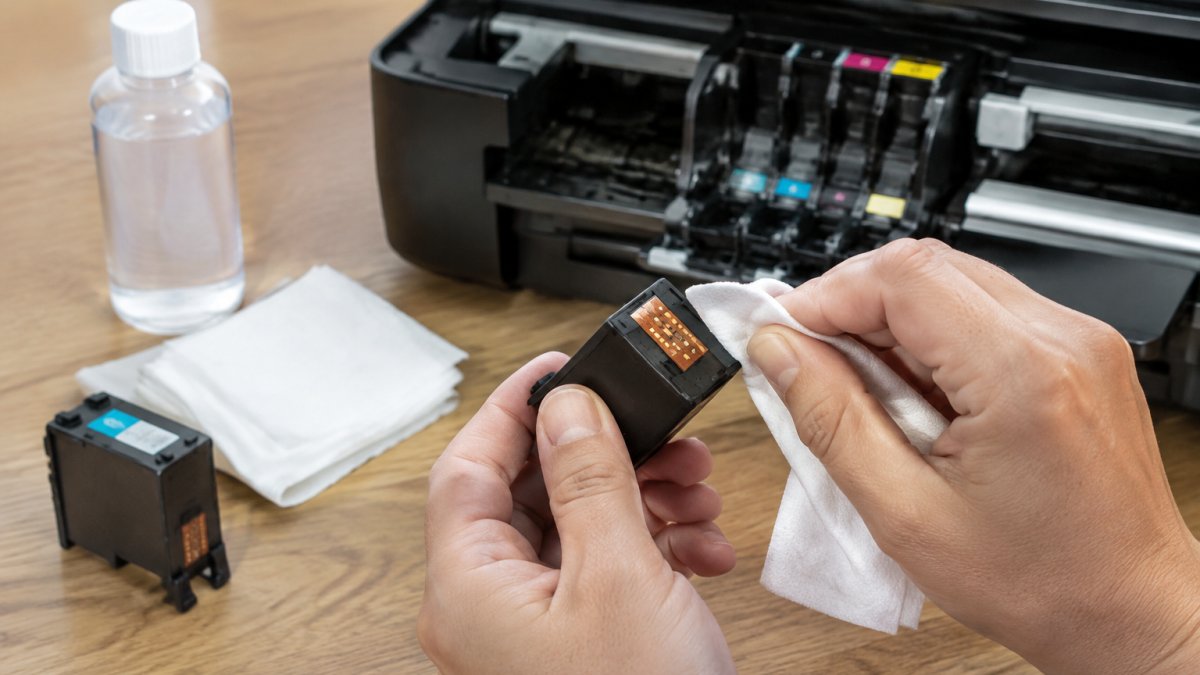
Here's how to clean them:
- Turn the printer off and unplug it.
- Open the access door and let the carriage move to the center.
- Remove the cartridge and set it on a paper towel.
- Dampen a lint-free cloth with isopropyl alcohol. Not dripping, just damp.
- Wipe the copper contacts on the cartridge in one direction.
- Wipe the matching contacts inside the carriage the same way.
- Let both air-dry for two minutes before reinstalling.
How to tell dirty from damaged. Dirty contacts look dull or smudged and clean up to a bright copper shine. Damaged contacts look scratched, gouged, or dark green with corrosion and won't come back.
Watch out: avoid touching the contacts with your bare fingers, since skin oil can interfere with recognition.
Step 2: Properly Seat the Cartridge and Remove Protective Tape
A cartridge that isn't fully seated will trigger the same error as a dirty one. So will a cartridge still wearing its factory tape.
Push the cartridge in at a slight upward angle until you feel a firm click.
Then check for tape. New cartridges ship with a protective strip over the ink nozzles and sometimes over the chip. Peel it off completely.
A quick visual check helps:
- Tape present → peel it, reinstall, retest
- Cartridge loose → reseat until it clicks
- Cartridge clicks but still errors → move to Step 3
Step 3: Perform a Hard Reset and Power Cycle
A hard reset clears the printer's memory of the old cartridge and forces it to re-read the new one.
Do it in this order:
- Leave the printer powered on.
- Unplug the power cord from the wall, not just the button.
- Wait at least 60 seconds.
- Plug it back in and power on.
- Let the printer complete its startup cycle before printing.
On some models, you can also run a reset through the control panel menu under Setup, labeled "Restore Defaults" or "Reset Settings." This wipes stored ink levels and forces a fresh read.
If the error message returns immediately after the reset, the problem is hardware or firmware, not memory. Keep going.
Step 4: Update or Roll Back Printer Firmware
Firmware is the software inside your printer, and it can determine which cartridges the machine accepts. Updates may change cartridge recognition, including for third-party ink. If your error appeared within a day or two of a firmware update, treat the update as the prime suspect.
Confirm what firmware you're running
Before you change anything, write down the current firmware version. On most models you'll find it under Setup → Printer Information or Settings → Device Information; on others, print a configuration or status report, the version appears near the top. Note the version string exactly, including any letter suffix, so you can tell whether an update installed and which earlier version to target if you roll back.
Update the firmware the safe way
- Go to the manufacturer's official support site and enter your exact model number.
- Download the firmware package for your operating system, or use the printer's built-in Update Firmware menu if it has one.
- Keep the printer powered and connected for the entire process. A dropped connection mid-flash is the most common way people brick a printer.
- Let the printer restart on its own and run its startup cycle before you print.
- Reprint the configuration report and confirm the version string changed.
Watch out: never install firmware from a third-party site or a file-sharing link. A corrupted or modified firmware file can leave the printer permanently unusable, and that damage is not covered by most warranties.
Roll back when the update caused the problem
Rollback is the fix most guides skip, and it resolves the frustrating case where a printer worked fine yesterday and rejects every cartridge today. The procedure varies by brand, but the pattern is consistent:
- Check the support site for archived firmware. Many manufacturers keep older versions under a "Previous Versions," "Drivers & Downloads archive," or "Firmware History" link on the model's support page. Search for the version number you recorded before the update.
- Use the same installation method in reverse. If the update came through a desktop utility, the older package usually installs the same way. If it came over the network from the printer menu, you may need to load the older file from a USB drive, check your model's manual for the exact menu path.
- Disable automatic updates first. Most printers have an Auto Update or Check for Updates setting under Setup or Network. Turn it off before you roll back, or the printer may reinstall the bad firmware overnight.
Rollback often restores cartridge recognition immediately, confirming the update was the cause. If the error persists after a successful rollback, the problem is hardware, move on to the contact and chip checks in the earlier steps.
If you can't roll back
Some models lock firmware to the newest version with no downgrade path. Your options are narrower: reinstall the newest firmware in case the first flash was incomplete, try a genuine cartridge of the current generation (which the new firmware is guaranteed to support), or contact the manufacturer and describe the error as a post-update recognition failure. Manufacturers track these reports, and a documented pattern sometimes produces a corrective update within a few weeks.
When the Printer Says No Ink but Cartridge Is Full
This is the classic printer says no ink but cartridge is full scenario, and it usually means the chip has lost its memory of the ink level, not that the ink is gone.
The chip tracks pages printed, not actual ink volume. After a refill, the chip still reports empty because nobody reset it.
Try these in order:
- Run the printer's own ink level reset from the maintenance menu
- Remove and reinstall the cartridge to force a fresh read
- Run a deep clean cycle to restore ink flow
If the printer accepts the cartridge but prints blank pages, the problem is ink flow, not recognition. That's a different fix.
How to Get Printer to Accept Ink Cartridge: Compatibility Checks
Knowing how to get printer to accept ink cartridge starts with verifying the part number, not fiddling with settings. A cartridge built for a different model will never work, no matter how many times you reseat it. Work through these checks in order, each rules out a category of problem before you spend money on a replacement.
1. Match the part number to your exact model
Find the cartridge part number on the box, the cartridge label, or the printer's documentation. Then confirm it against your printer's model number, not just the brand. Many cartridge families serve several models, and a near-miss part number, one digit off, is a common cause of rejection. The setup guide, the inside of the access door, or the manufacturer's support site will list the correct part numbers.
2. Check the region code
Regional lockout, sometimes called geoblocking, means a cartridge sold for one market carries a chip the printer won't read in another. If you bought ink abroad, from an unfamiliar online seller, or from a reseller who imports stock, this is a real possibility.
How to verify:
- Look for a region marking on the cartridge label or box. Many cartridges carry a region code, a country of origin, or a market-specific suffix in the part number. Compare it with the region your printer was sold in.
- Check the part number suffix. Some manufacturers append a region letter or number to the standard part number. A cartridge with a different suffix may be region-locked even though the base number matches.
- Test with a known-local cartridge. If you have access to a cartridge purchased in your own market for the same model, install it. If it's recognized and the suspect cartridge isn't, region coding is the likely cause.
If region lockout is confirmed, the cartridge generally cannot be made to work in your printer. Return it and source ink intended for your market.
3. Understand OEM versus compatible chips
Third-party and compatible cartridges use their own chips, and some firmware blocks them, sometimes deliberately, sometimes as a side effect of an update. A compatible cartridge from a reputable supplier is built to match your model's chip generation, but the match has to be exact. If a compatible cartridge that worked before suddenly stops being recognized, suspect a firmware change before you suspect the cartridge.
4. Confirm the chip generation
Newer printers may require a newer chip version, and older stock can sit on shelves for years. If the cartridge's packaging or label shows a chip generation or revision number, compare it with what your printer's documentation specifies. When in doubt, the supplier can confirm which chip generation their stock carries for your model.
5. Rule out a counterfeit or remanufactured mismatch
Counterfeit and poorly remanufactured cartridges sometimes carry chips that don't match the model they're sold for. If the packaging looks off, mismatched fonts, missing security labels, a part number that doesn't match the box, treat the cartridge as suspect and verify with the manufacturer's authentication tool if one is available.
Confirming the part number and region with your supplier before ordering is a sensible precaution.
HP Printer Not Recognizing New Ink Cartridge: Brand-Specific Fixes
An HP printer not recognizing new ink cartridge usually comes down to three things: tape still on, cartridge not seated, or firmware needing a reset. HP models are strict about chip contact, so cleaning matters more here than on some other brands.
Work through this sequence:
- Remove the cartridge and check for protective tape.
- Clean the copper contacts with isopropyl alcohol.
- Reseat until it clicks firmly.
- Run a hard reset with the power cord unplugged.
- Update firmware from HP's official support site.
- Run the built-in diagnostic utility from the printer menu.
If the printer still rejects the cartridge after all six steps, the chip is likely faulty. A defective chip is rare but real, and it's covered by most suppliers' return policies. Keep your receipt.
A printer that rejects a full cartridge is frustrating, but the fix is usually mechanical, not mysterious. Clean the contacts, reseat the cartridge, reset the printer, and check your firmware.
When you do need replacement ink, House Of Toner offers compatible toner and ink cartridges for a range of printer brands.
Frequently Asked Questions
Why does my printer say no ink when the cartridge is full?
The printer may not recognize ink because the chip on the cartridge is dirty, the cartridge is not seated correctly, or the firmware is outdated. Try cleaning the electrical contacts with a dry lint-free cloth, reseating the cartridge until it clicks, and running a power cycle. If the printer still says no ink but the cartridge is full, check for a firmware update or test the cartridge in another printer to rule out a defective chip.
How do I get my printer to accept a new ink cartridge?
First, remove the protective tape from the new cartridge and avoid touching the electrical contacts. Insert the cartridge firmly until it clicks into place, then close the access door and let the printer run its initialization. If the printer still does not recognize the cartridge, clean the contacts with a dry lint-free cloth and perform a hard reset. For compatible cartridges, verify the model number matches your printer and check for any firmware updates that may affect third-party ink recognition.
Can a firmware update stop my printer from recognizing compatible ink?
Yes, some firmware updates include changes that make the printer reject third-party or refilled cartridges. If your Epson ink cartridge is not recognized after a firmware update, check the printer manufacturer's website for a rollback option or contact support. In some cases, you may need to replace the cartridge with an OEM version or wait for a compatible chip update from the seller.
